 MotionLab
How Far Should a Monitor Be From Your Eyes?
MotionLab Editorial · 12 min read · Education
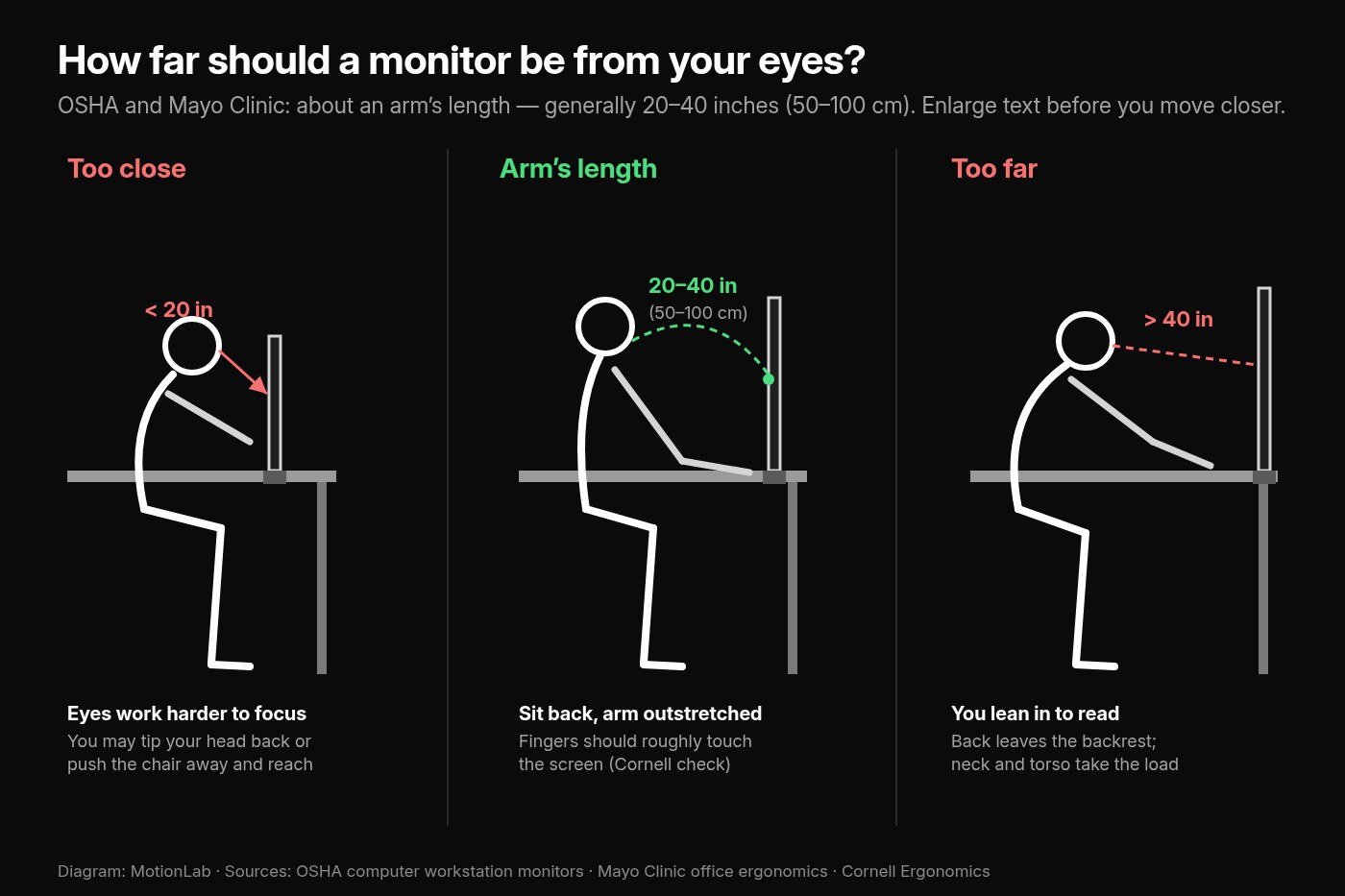
Keep your monitor about an arm’s length away — OSHA and Mayo Clinic both cite 20–40 inches (50–100 cm) from your eyes. Enlarge text before sitting closer. Preferred viewing distance is about an arm’s length: OSHA and Mayo Clinic both cite roughly 20–40 inches (50–100 cm) from your eyes to the front of the screen Too far makes you lean in and lose backrest support; too close forces harder focusing and awkward head or reach postures (OSHA)
Key Takeaways
- ✓Preferred viewing distance is about an arm’s length: OSHA and Mayo Clinic both cite roughly 20–40 inches (50–100 cm) from your eyes to the front of the screen
- ✓Too far makes you lean in and lose backrest support; too close forces harder focusing and awkward head or reach postures (OSHA)
- ✓If text is hard to read at that distance, enlarge the font or display scaling — do not crowd the screen (OSHA, CCOHS, Cornell)
- ✓Distance alone is incomplete: center the primary screen, set height correctly, and still rest your eyes and change posture every 20–30 minutes
How Far Should a Monitor Be From Your Eyes?
Your monitor should sit about an arm’s length from your eyes — generally 20–40 inches (50–100 cm) according to OSHA’s computer workstation monitor guidance and Mayo Clinic’s office ergonomics guide. Sit back so the chair supports you, raise an arm, and your fingertips should roughly reach the screen (Cornell University Ergonomics). If the text still looks small, enlarge the font or zoom — do not scoot closer.
How far should a monitor be from your eyes is one of the most searched desk-setup questions for a reason. Distance drives whether you lean forward all afternoon, tip your head back, or type with outstretched arms. Height still matters — see how high should your monitor be — but wrong distance will undo a perfect height setting.
This guide turns the OSHA and Mayo numbers into a two-minute setup, explains what goes wrong when the screen is too close or too far, covers dual monitors and laptops, and adds the eye-break and mobility layer that makes a correct distance stick.
Why Does Monitor Distance Matter?
Your head is a heavy load on a flexible neck. When the screen sits in the wrong place, your body usually moves to meet it instead of the other way around.
OSHA spells out both failure modes:
- Too far: you lean forward and strain to see small text. Eyes fatigue, and your torso leaves the backrest so the back and neck take the load.
- Too close: your eyes work harder to focus and converge. You may tip your head backward, or push the chair away and then type with outstretched arms.
CCOHS’s monitor positioning overview adds the eye-physiology angle: shorter viewing distances demand more muscular effort for focusing (accommodation) and for pointing both eyes at the same spot (convergence). Longer distances ease that load but make fine text harder to resolve — which is why the fix for “I can’t read it” is bigger text, not a closer screen.
CCOHS also notes that eyes have a resting focus distance (often near about 80 cm / 31.5 in for many adults) and a resting vergence point a bit farther out. An arm’s length is a practical estimate of that comfortable zone, then you fine-tune for your vision and screen size.
Monitor distance is not a vanity setting. It is a daily dose of lean-in, head-back, or near-neutral posture — and it shows up as afternoon neck ache, dry eyes, and the habit of perching on the front of the chair.
What Is the Recommended Viewing Distance?
Use the same targets OSHA and Mayo Clinic publish, then adjust for glasses and screen size.
The default range
- About an arm’s length for many adults
- OSHA preferred range: 20–40 inches (50–100 cm) from the eye to the front of the screen
- Mayo Clinic: no closer than about 20 inches and no farther than about 40 inches, straight in front of you and behind the keyboard
- OSHA’s quick tip: put the monitor directly in front of you and at least 20 inches away
The Cornell arm check
Sit all the way back. Raise one arm straight toward the screen. Your fingertips should roughly touch the display. If they fall short, the screen is too far; if your palm hits first while you are still cramped, it is too close.
When text looks small
Enlarge the font, bump display scaling, or use browser zoom. OSHA, CCOHS, and Cornell all prefer that over crowding the screen. A 24- or 27-inch panel at arm’s length with readable text beats a tiny laptop panel under your nose.
Tall, ultrawide, and dual panels
Ultrawides and very large screens often need slightly more distance so you are not constantly rotating your neck to reach the corners. Dual monitors follow the same range for the primary work zone — details below. Height still uses the top-of-screen / eye-level rule from how high should your monitor be.
How Do You Set Monitor Distance Step by Step?
Sit in your normal working position and set distance before you chase perfect height. Work through these in order.
1. Sit all the way back
Slide your hips to the back of the seat so the backrest and lumbar support actually hold you. Measuring distance while perched on the front edge understates how far you will lean once you fatigue.
2. Place the monitor directly in front of you
Center the primary screen with your torso and the letter keys (Cornell’s B-key midline tip). OSHA says prolonged work should not put the main screen more than about 35° left or right.
3. Start at arm’s length
Raise an arm. Move the monitor (or the chair, if the desk is fixed) until your fingertips roughly meet the screen. You are aiming for the middle of the 20–40 inch band, then fine-tuning.
4. Check that you can read without leaning
Open a typical document or browser window. If you instinctively tip forward, enlarge the text or zoom before you move closer. If you feel yourself squinting and still sitting back, you may need a little less distance after text is already large — not before.
5. Confirm height next
With distance set, raise or lower the display so the top is at or slightly below eye level and the center sits about 15–20° below horizontal eye level (OSHA). Bifocal and progressive wearers usually need the screen about 1–2 inches lower (Mayo Clinic).
6. Pull the keyboard and mouse in
Keep elbows close and bent about 90–120° so a good viewing distance does not force a reach that pulls you forward again (OSHA keyboard posture).
7. Save the setup
Mark the desk depth, arm-mount notch, or chair casters position if you hot-desk. Recreating arm’s length should take under a minute once you know the target.

If the desk is too shallow for 20+ inches of depth, OSHA suggests pulling the desk from the wall, using a flat-panel display, parking the monitor in a corner that has more depth, or adding a keyboard tray so you can sit farther from the screen without losing typing posture.
What Goes Wrong When the Monitor Is Too Close or Too Far?
Too far (beyond about 40 inches for most people)
You lean in to resolve small text. The backrest stops working. Neck and upper-back muscles hold your head forward for hours — the same forward-head pattern covered in tech neck desk posture stretches and how to stop slouching at your desk. Cornell’s advice is blunt: use a larger font or zoom rather than sitting closer.
Too close (under about 20 inches)
Focusing and converging take more effort (CCOHS). Some people tip the head back; others roll the chair away and then reach for the keyboard with outstretched arms — trading eye comfort for shoulder and wrist strain (OSHA).
Mixed signals from a laptop
A laptop flat on the desk is usually both too low and too close for long sessions. Raising the screen without an external keyboard often makes the keys too high. Separate the display from the typing surface with how to set up a laptop for desk work.
Glare that fakes a distance problem
If you keep leaning or tilting to dodge reflections, fix glare first: place the screen roughly perpendicular to windows, tilt about 10–20° so it meets your line of sight, and clean dust that kills contrast (OSHA).
How Far Should Dual Monitors and Ultrawides Be?
Two screens only help if the active work stays at a readable distance in front of you.
One primary monitor
Put the primary display directly in front at arm’s length. Angle the secondary to the side at matching height so your eyes travel sideways, not diagonally. Keep the main content inside the 20–40 inch comfort zone.
Equal dual monitors
Create a gentle semi-circle (CCOHS dual-monitor layout) so you face the gap between them rather than twisting toward one panel all day. Stay about an arm’s length from the screens; if corner content forces constant rotation, increase distance slightly or move windows toward the center.
Ultrawides
Center the active window zone in front of you. Very wide panels often need a bit more than the minimum 20 inches so peripheral UI is not permanently in your neck-turn zone.
Laptop + external monitor
Treat the external panel as primary whenever you can. Closing the laptop on a dock, or using it only as a side reference, beats hours of neck rotation toward a close, low laptop screen.
How Do You Rest Your Eyes at the Right Distance?
Even a textbook viewing distance fails if you stare without a break. OSHA notes that prolonged monitor viewing can reduce blink rate and contribute to eye fatigue and dryness. Their practical counters:
- Rest the eyes by focusing on a distant target periodically (OSHA’s example: a clock about 20 feet away)
- Look away and blink at regular intervals to re-moisten the eyes
- Alternate computer work with non-screen tasks when you can
Layer musculoskeletal breaks on top:
- Every 20–30 minutes: stand, take 10–60 seconds of steps, or a posture reset
- Every hour when meetings block half-hourly breaks: a fuller 2–5 minute walk — dose detail in how often to take a walking break from sitting
- Micro mobility from desk stretches when you stand — chin tucks, thoracic extension over the chair back, shoulder blade squeezes

Mayo Clinic’s ergonomics guidance closes the same way: get up and walk around through the day; stretch hands and arms while seated between larger breaks. Perfect geometry plus zero movement is still a static load.
What Mobility Helps After Years of Leaning Into the Screen?
Hardware removes the forced lean. Mobility reduces how stuck you feel when you do sit and stare.
Prioritise tissues that bad viewing distance overloads:
- Deep neck flexors and upper trapezius / levator patterns — tech neck desk posture stretches
- Thoracic extension and chest opening — chair extensions, doorway pec stretch; see thoracic spine mobility and how to fix rounded shoulders
- Hip flexors and glutes — screen distance does not save you from eight hours of hip flexion; use the desk worker mobility guide
- Wrist and forearm care if mouse reach crept in while you chased the screen — wrist stretches
A realistic daily stack
- Monitor distance + centering (this article) as the all-day default
- Micro-break mobility when you stand
- One 8–12 minute fuller block once a day
If you would rather have that last layer planned for you, MotionLab builds guided mobility sessions of 7, 15, or 25 minutes around your restrictions, using AI powered by Gemini. MotionLab is live on the web and Android; start at /signup when you’re ready. Sharp, radiating, or progressive neurological symptoms are not a cue to stretch harder — get assessed.
What Mistakes Ruin Monitor Viewing Distance?
- Leaning in instead of enlarging text. Cornell and OSHA both prefer bigger fonts or zoom over a closer screen.
- Measuring while perched forward. Sit all the way back first, or you will “set” a distance you abandon by mid-afternoon.
- Fixing height but ignoring depth. A perfect eye-level screen that sits 50 inches away still pulls you into a hunch.
- Laptop flat on the desk for full workdays. Fused screen and keyboard make healthy distance and height nearly impossible together.
- Primary work on a side monitor. Twisting toward a secondary screen for hours is its own neck problem, even at a good distance.
- Shallow desks with no workaround. If you cannot get 20 inches of depth, use OSHA’s depth tricks (pull from wall, flat panel, corner, keyboard tray) instead of accepting a too-close setup.
- Expecting distance alone to fix tech neck. You still need movement breaks and targeted mobility for tissues that adapted to years of forward head posture.
How Far Should a Monitor Be From Your Eyes FAQ
How far should a monitor be from your eyes?
About an arm’s length — OSHA and Mayo Clinic both point to roughly 20–40 inches (50–100 cm) from your eyes to the front of the screen. Sit back, raise an arm, and your fingertips should roughly touch the display.
Is 20 inches close enough, or should I sit farther?
Twenty inches is OSHA’s minimum (“at least 20 inches away”). Many people are more comfortable nearer the middle of the 20–40 inch band, especially on larger screens. Prefer the distance where you can read easily while sitting back with your back supported.
What if I can’t read the text at arm’s length?
Enlarge the font, increase display scaling, or zoom the window. Do not crowd the screen. OSHA, CCOHS, and Cornell all make that the first fix.
How far should a laptop be from my eyes?
The same 20–40 inch range applies once the laptop is a display on a stand or you are using an external monitor. Typing on a flat laptop usually parks the screen too close and too low — separate keyboard and mouse with how to set up a laptop for desk work.
Does monitor distance fix neck pain by itself?
It removes a major daily driver of leaning and forward head posture. You still need correct monitor height, a chair you can sit back in, regular movement breaks, and mobility work for tissues that adapted to the old pattern.
How far should dual monitors be?
Keep the primary work zone at arm’s length in front of you. Match heights, and angle a secondary screen to the side rather than placing main work off to one side.
Should the monitor be above or below eye level at that distance?
Prefer the top of the screen at or slightly below eye level so you look slightly down at the center (about 15–20° below horizontal per OSHA). Distance and height are a pair — set both.
Sources
Related reading
Put it into practice
Ready to apply what you've learned?
MotionLab builds personalised mobility sessions around your specific restrictions — so every minute you invest targets what you actually need.
Start a session on MotionLab →