 MotionLab
How to Set Up Dual Monitors
MotionLab Editorial · 13 min read · Education
Center your primary monitor at arm’s length with the top at eye level, angle the second screen in beside it at the same height, and keep main work in front. Decide first which screen you use most: a primary screen goes dead center; two equally used screens meet at a seam directly in front of you (CCOHS) Keep both monitors about an arm’s length away (roughly 20–40 inches / 50–100 cm) and at the same height, tops at or slightly below eye level (CCOHS, OSHA, Mayo Clinic)
Key Takeaways
- ✓Decide first which screen you use most: a primary screen goes dead center; two equally used screens meet at a seam directly in front of you (CCOHS)
- ✓Keep both monitors about an arm’s length away (roughly 20–40 inches / 50–100 cm) and at the same height, tops at or slightly below eye level (CCOHS, OSHA, Mayo Clinic)
- ✓Angle the secondary screen inward so it faces you, and keep long stretches of work within about 35° of straight ahead (OSHA)
- ✓Center your keyboard and mouse on the primary screen, set the display arrangement in your OS to match the desk, and still change posture every 20–30 minutes
How to Set Up Dual Monitors
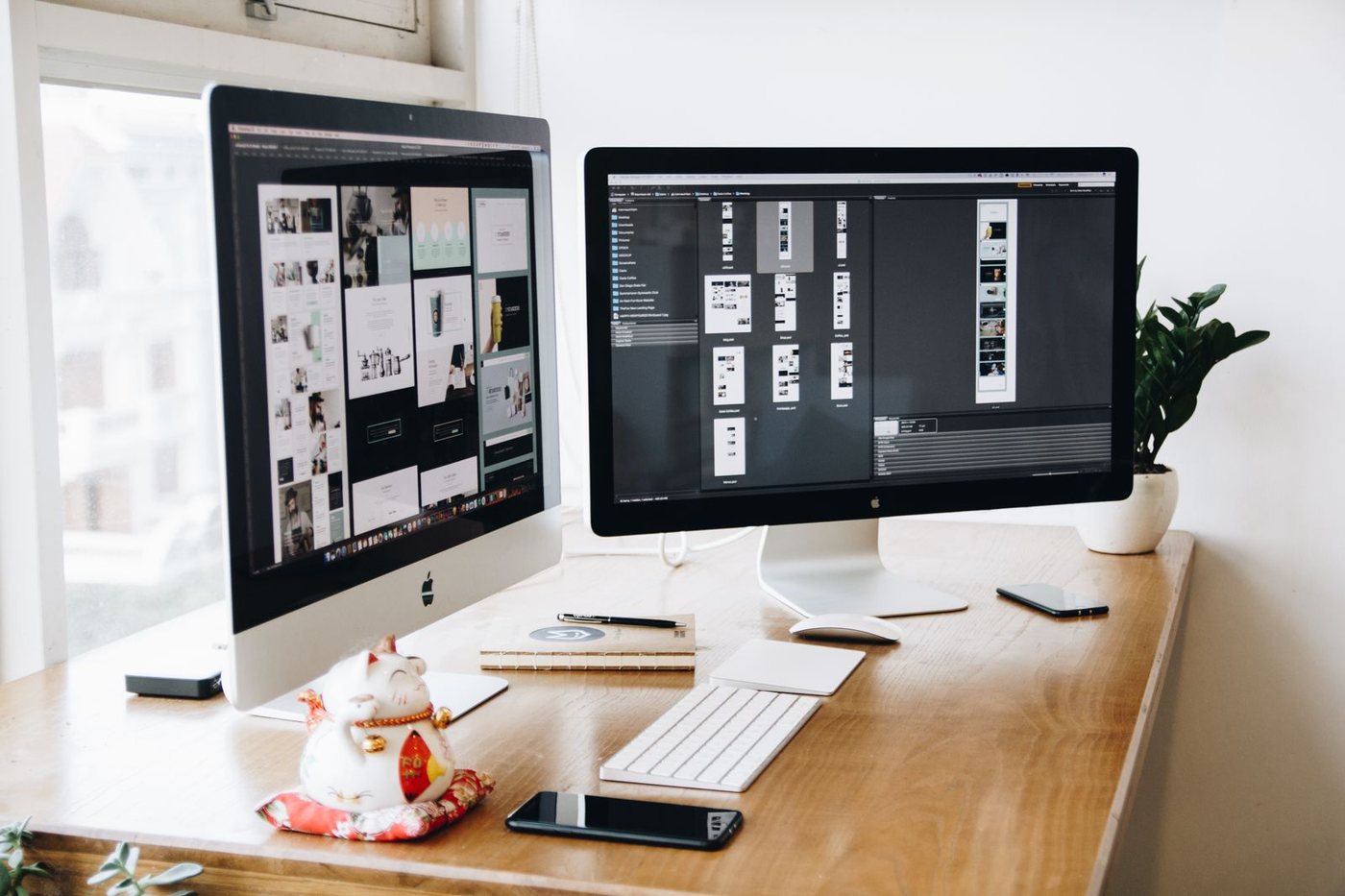
To set up dual monitors, first decide whether one screen is your primary. If it is, put that screen directly in front of you as if it were your only monitor, about an arm’s length away with the top at or slightly below eye level, and park the second screen beside it, angled in toward you at the same height. If you use both screens equally, push their edges together, angle them into a gentle semi-circle, and sit facing the seam. That is the layout in CCOHS’s multiple-monitor guidance, and it sits on top of the single-monitor rules from OSHA and Mayo Clinic.
How to set up dual monitors is really a question about your neck. A second screen adds space, but if it ends up in the wrong spot it also adds hours of head turning, leaning, and peering at a panel set too high or too far. The fix is mostly about placement, not buying new gear.
This guide covers why a two-screen layout goes wrong, the two layouts that work, a seven-step setup (including the display settings most people skip), laptop, portable-monitor, and ultrawide notes, the break rhythm that keeps the layout from turning into a static posture, and the mistakes to avoid. If you have not set up a single monitor yet, start with how high should your monitor be and how far should a monitor be from your eyes. Dual-monitor setup builds on both.
Why Does Dual-Monitor Setup Matter?
Two monitors bring one new risk to the desk: rotation. CCOHS puts it simply: with multiple monitors, you still follow the single-monitor rules, but the extra challenge is “reducing head and body twisting and eye travel.”
OSHA explains why rotation matters: working with your head and neck turned to the side for long periods loads the neck muscles unevenly and increases fatigue and pain. OSHA’s limit for a monitor you look at for long stretches is no more than about 35° to the left or right of straight ahead.
Dual-screen desks usually fail in one of four ways:
- The twist. Two identical screens are centered on the desk, so the bezel sits right in front of your nose. Every task means turning your head a little left or right, all day.
- The reach. The keyboard stays centered on the desk while your main work lives on one screen, so your shoulders and wrists angle toward it for hours. This is the opposite of the neutral line in the correct wrist position for typing.
- The lean. The second screen is pushed farther back or turned flat to the wall to make it fit, so you lean forward to read it and your back leaves the backrest, the same pattern covered in how to stop slouching at your desk.
- The step. A laptop on one side and a taller external monitor on the other puts the two screens at different heights, so your eyes and head move diagonally instead of just sideways.
None of these hurts in a single afternoon. Repeated across a working week, they become the neck ache, the shoulder that is always tighter on one side, and the habit of sitting twisted in the chair.
What Is the Best Dual-Monitor Layout?
Pick the layout that matches how you actually work, not how the desk looks.
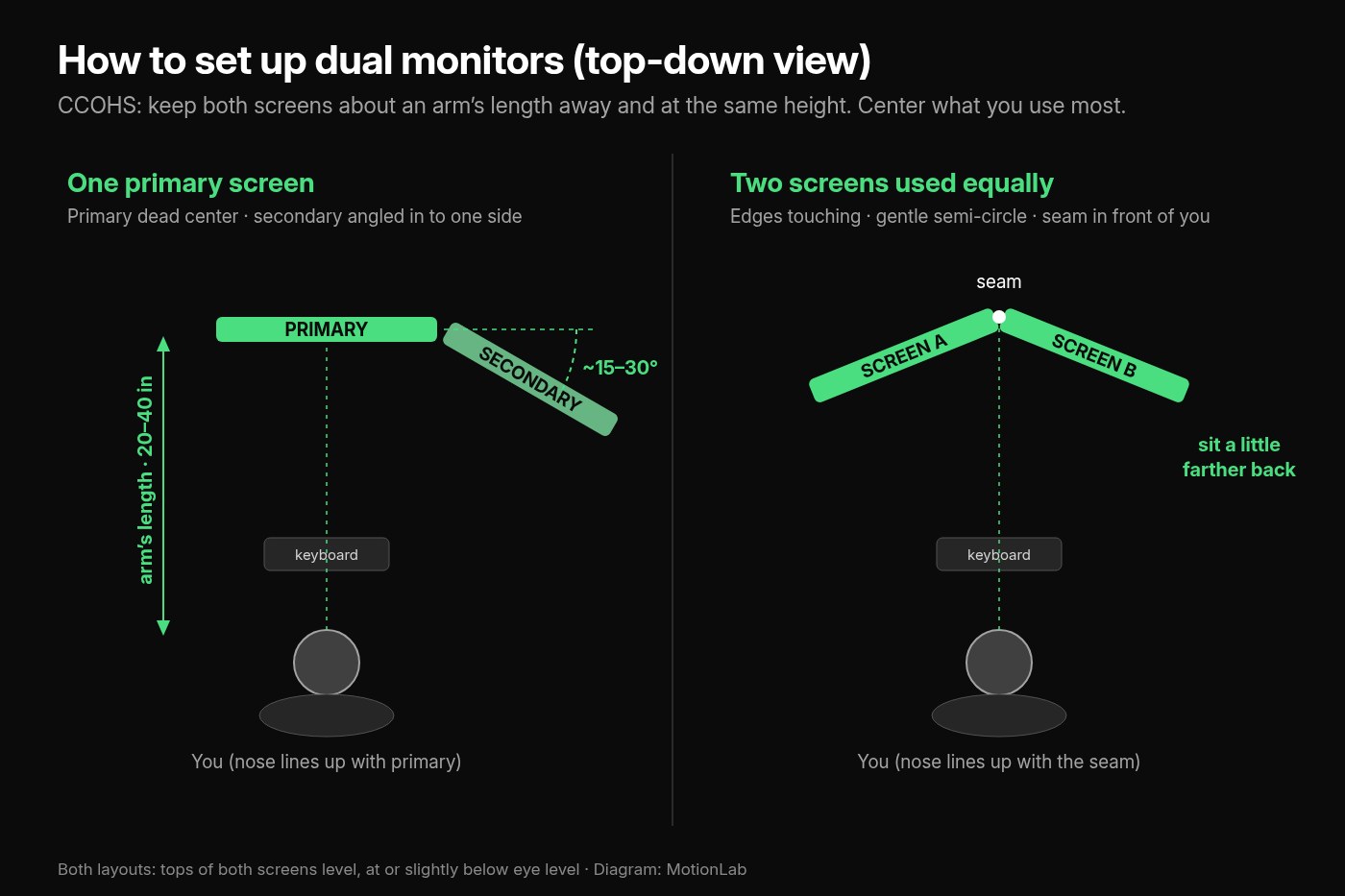
Layout 1: one primary, one secondary (the most common)
- Place the screen you use most directly in front of you, centered on your body and keyboard, as if it were a single monitor (CCOHS)
- Put the secondary screen on one side, touching or nearly touching the primary, and angle it in toward you, which CCOHS calls “half of a semi-circle”
- A practical starting angle is roughly 15–30°, enough that the face of the secondary screen points back at your eyes instead of at the far wall. Fine-tune until you can glance at it without leaning
- Put the secondary on the side you naturally turn to (for example, the side where your document stand or phone already sits)
Layout 2: two screens used about equally
- Push the screens together so the edges touch, then angle both inward to form a gentle semi-circle (CCOHS)
- Center the seam between them on your nose and keyboard so each screen sits only a short turn away
- The Occupational Health Clinics for Ontario Workers ergonomics guide adds a useful refinement: for a true 50/50 split, sit slightly farther back than you would from one monitor to cut down on neck and torso twisting
Rules for both layouts
- Distance: about an arm’s length, the same 20–40 inch (50–100 cm) range OSHA and Mayo Clinic give for a single screen. Sit all the way back, raise an arm, and your fingertips should roughly reach the screen (Cornell University Ergonomics)
- Height: both screens at the same height, tops at eye level or slightly below. Bifocal and progressive-lens wearers usually do better with both screens a little lower (Mayo Clinic suggests an extra 1–2 inches for a single monitor)
- Tilt: tilt each screen back slightly so it is perpendicular to your line of sight, usually no more than 10–20° (OSHA)
Which layout should you choose?
Look at a normal day. If one screen holds your code, document, or inbox and the other holds reference material, chat, or a video call, you have a primary. Use Layout 1. True 50/50 work, like comparing two documents or editing across a timeline and a preview, suits Layout 2. When in doubt, choose a primary. It keeps most of your hours at zero rotation.
How Do You Set Up Dual Monitors Step by Step?
Set the chair first: feet flat, hips all the way back, backrest supporting you (see how to adjust an office chair). Then work through these steps in order.
1. Place the primary screen
Center the monitor you use most directly in front of your chair and torso. If both screens get equal use, center the seam between them instead. OSHA says prolonged work should not put a screen more than about 35° to either side.
2. Set height and distance on the primary
Move it to about an arm’s length away, 20–40 inches (50–100 cm), with the top of the screen at or slightly below eye level and the center about 15–20° below horizontal eye level (OSHA). Enlarge text before you move it closer.
3. Place the secondary screen beside it
Slide the second monitor next to the primary so the edges touch or nearly touch. Gaps make your eyes and head travel farther, and a big gap usually means the secondary ends up past the 35° zone.
4. Match the heights
Raise or lower the secondary until the top edges of both screens line up. Use the stand’s height adjustment, a monitor arm, or a stable riser. If one screen is a laptop, raise it on a stand to meet the external monitor.
5. Angle the secondary in
Rotate the secondary screen so its face points back at your eyes. Roughly 15–30° is a good start for a primary/secondary layout. For an equal pair, angle both into a gentle semi-circle around the seam. Check you can read the far edge without leaning.
6. Match the arrangement in your operating system
Tell the computer where the screens physically sit so the mouse moves straight across instead of jumping. On Windows, go to Settings → System → Display, drag the screen boxes to match the desk, line up their top edges, and choose Make this my main display for the primary. On a Mac, open System Settings → Displays → Arrange and set the primary as the Main display. Then match scaling or text size so a window looks the same size on both screens.
7. Center your keyboard and mouse on the primary
Line up the keyboard with the primary screen (or with the seam for an equal pair), not with the middle of the desk. Keep elbows close at about 90–120° and the mouse right beside the keyboard so your shoulders stay square (OSHA, Mayo Clinic).
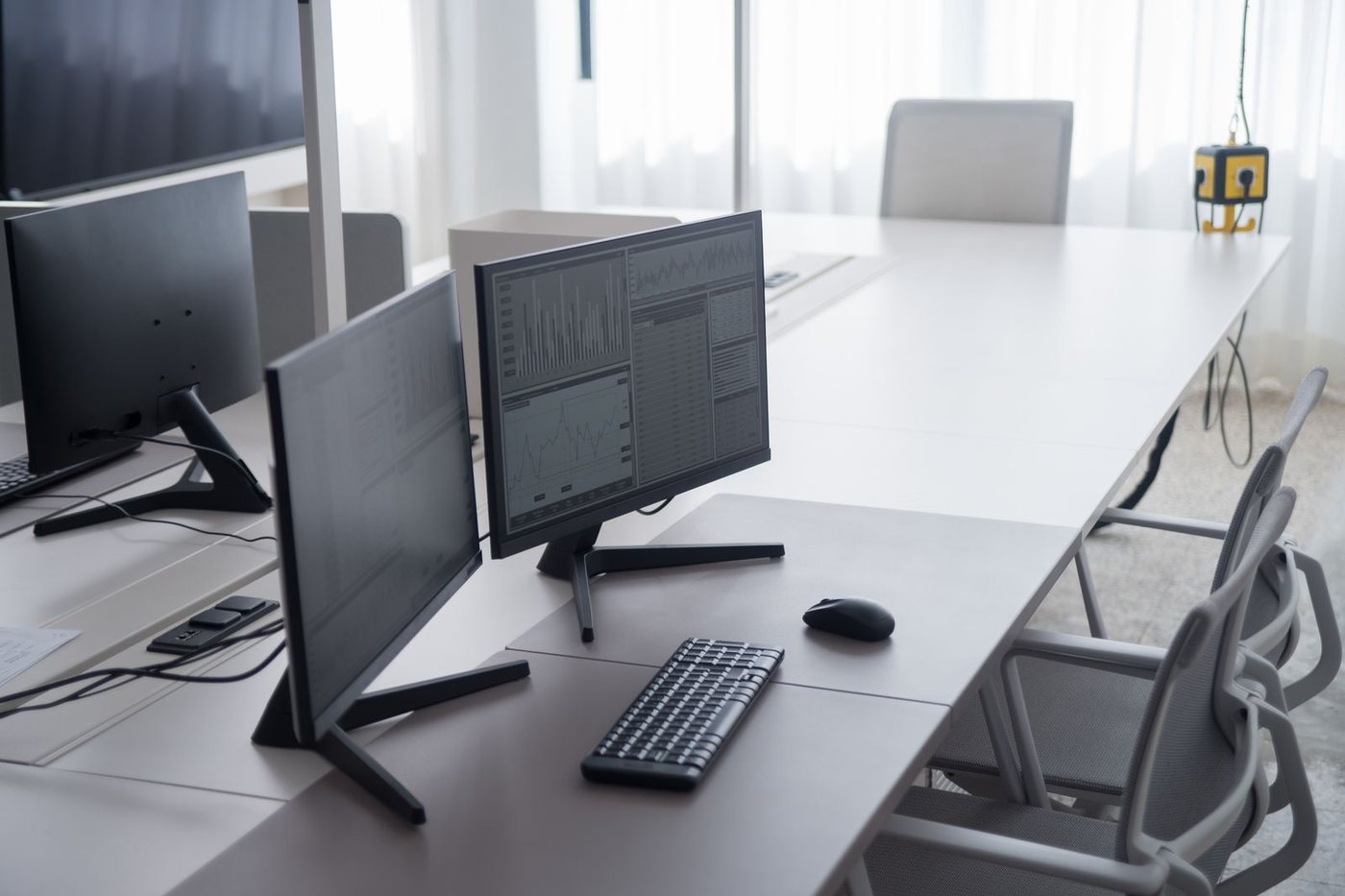
Finish by working normally for 15 minutes and noticing where your head sits most of the time. If you catch yourself turned toward the “secondary” screen, it is actually your primary. Swap them, then repeat steps 1–7.
How Do You Set Up a Laptop With a Second Monitor or an Ultrawide?
The same rules apply, but laptops and wide panels add a few twists.
Laptop + external monitor
A laptop flat on the desk is low and close, which is why Mayo Clinic recommends an external keyboard and mouse plus a laptop stand for desk work. With a second screen:
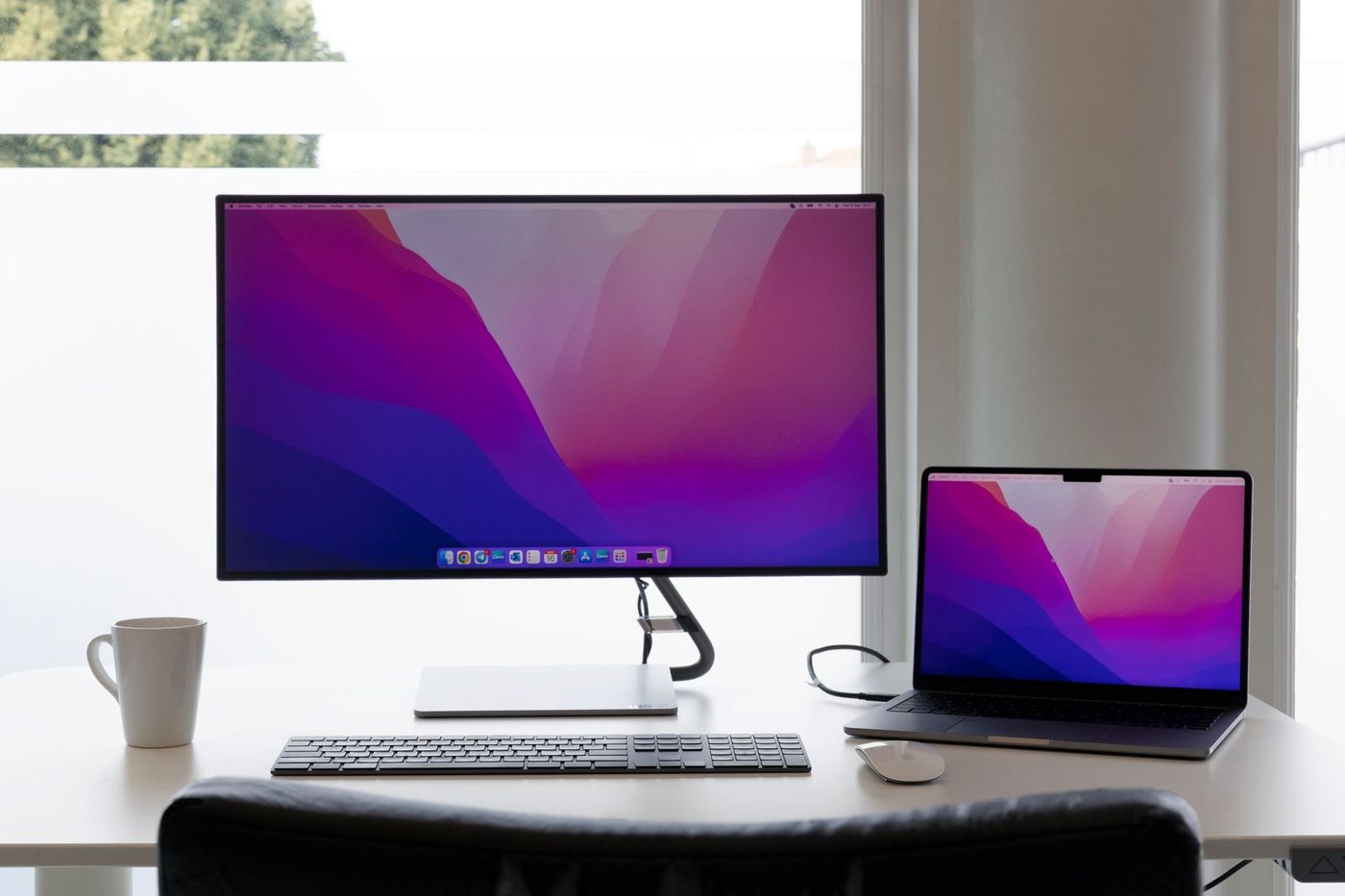
- Make the external monitor the primary and center it. It is usually bigger, easier to adjust, and easier to set at the right height
- Use the laptop as the secondary: raise it on a stand so its top edge is close to the external screen’s top edge, put it beside the monitor, and angle it in
- Type on an external keyboard and mouse centered on the external monitor. Typing on the laptop’s own keyboard pulls you back toward it and brings back the low, close screen problem
- If the laptop screen is much smaller and you rarely look at it, close it on a dock and run one well-placed monitor instead. Full laptop geometry: how to set up a laptop for desk work
Portable (USB-C) monitors
Thin travel monitors often sit on a fold-out kickstand right on the desk, below a raised laptop. Put the laptop and portable screen on the same riser, or raise the portable screen on books, so the two tops line up. On short trips, a height mismatch is fine for an hour. For full workdays, fix it.
Ultrawides
One curved ultrawide behaves like an equal pair with no seam. Center the panel on your body, put your active window in the middle, and push reference windows toward the edges. CCOHS notes that wide monitors can make you rotate your neck to see the whole screen, so you may need to move the monitor a bit farther back. If you keep turning to reach the corners, sit slightly farther away or snap your main window to the center.
Three or more screens
The OHCOW guide treats the middle screen as the primary and suggests sitting far enough back that you can see the outer screens without constant turning. If the outer panels are seldom used, angle them in sharply or remove one.
How Often Should You Take Breaks at a Dual-Monitor Desk?
A perfect two-screen layout is still one posture held for hours. More screen space often means fewer reasons to get up, so plan the breaks on purpose.
Eye breaks
OSHA notes that people tend to blink less while looking at a monitor, which can add to eye fatigue and dryness. OSHA suggests: - Look at something farther away from time to time (OSHA’s example is a clock about 20 feet away) - Look away and blink at regular intervals - Switch to non-screen tasks, like phone calls or paperwork, when you can
Posture breaks
- Every 20–30 minutes: stand, take a few steps, or reset your posture. Even 30–60 seconds helps break a static load
- Every hour or so: take a fuller 2–5 minute walk. Timing details are in how often to take a walking break from sitting
- When you stand: do a few desk stretches like chin tucks, a thoracic extension over the chair back, and slow neck rotations to both sides. A dual-screen desk often trains one direction more than the other
Mayo Clinic ends its ergonomics guide on the same point: no matter how well your workspace is set up, sitting in one position for hours isn’t good for your body. Get up, walk around, and stretch your hands and arms while seated. Your setup removes the twist. Movement keeps the rest of your body from stiffening in place.
What Mobility Helps a Neck That’s Used to Turning One Way?
If your old setup kept your head turned to one side for months, the muscles on that side often feel stiffer, and turning the other way may feel limited. Fixing the layout stops you from loading that pattern. Mobility work helps you get the other direction back.
Focus on:
- Neck rotation and side bending, both ways: slow, pain-free turns and the upper-trap and levator stretches in tech neck desk posture stretches. Give the stiffer side a few extra breaths, not extra force
- Thoracic rotation and extension: much of your turn should come from the upper back, not just the neck. See thoracic spine mobility and how to fix rounded shoulders
- Hips: dual monitors don’t change how long you sit. The desk worker mobility guide covers hip flexors and glutes
- Wrists and forearms, if your mouse ended up far off to the side: wrist stretches
A realistic daily plan
- Correct dual-monitor layout (this article) as your all-day baseline
- Short mobility breaks whenever you stand
- One longer 8–12 minute session once a day
If you’d like that longer session planned for you, MotionLab builds guided mobility sessions of 7, 15, or 25 minutes around your restrictions, using AI powered by Gemini. MotionLab is live on the web and Android. Start at /signup when you’re ready. Sharp, radiating, or worsening neurological symptoms (numbness, tingling, or weakness down an arm) are not a cue to stretch harder. Get them assessed.
What Mistakes Ruin a Dual-Monitor Setup?
- Centering the bezel when you have a primary. If one screen gets most of your time, the gap between the two screens should not be in front of your nose. Center the primary.
- Keeping the keyboard centered on the desk instead of the screen. Your hands and the screen you use most should line up. Otherwise your shoulders and wrists twist toward the work.
- Different heights. A laptop next to a taller monitor, or two different stands, makes your eyes and head move diagonally. Line up the top edges.
- Leaving the secondary flat. A side screen that faces straight ahead shows you its edge, so you lean or turn your whole body to read it. Angle it in.
- Pushing the second screen too far back. Making it fit by sliding it toward the wall breaks the arm’s-length rule and pulls you into a lean.
- Stacking one screen on top of the other for long sessions. That puts the top screen above eye level, which OSHA links to tilting your head back and fatiguing your neck and shoulders.
- Skipping the OS display arrangement. If the cursor jumps or windows open on the wrong screen, you end up working wherever the window lands instead of where it belongs.
- Assuming a better layout replaces breaks. It removes the twist. You still need to change posture every 20–30 minutes and do mobility work for tissues that have adapted.
How to Set Up Dual Monitors FAQ
How do you set up dual monitors ergonomically?
Put the screen you use most directly in front of you at about an arm’s length (20–40 inches / 50–100 cm), with the top at or slightly below eye level. Place the second screen beside it at the same height and angle it in toward you. If you use both equally, put the edges together, angle them into a semi-circle, and center the seam on your body (CCOHS).
Should dual monitors be the same height?
Yes. CCOHS recommends both screens at the same height, at eye level or slightly lower if you wear corrective lenses. Matching heights keeps your eyes moving sideways instead of diagonally up and down.
What angle should a second monitor be at?
Angle it inward so its face points at your eyes. Roughly 15–30° is a practical starting point for a primary/secondary layout, then fine-tune until you can read the far edge without leaning. Avoid keeping your main work more than about 35° to the side (OSHA).
Should the gap between two monitors be in the middle?
Only if you use both screens about equally. Then the seam goes directly in front of you, and the OHCOW ergonomics guide suggests sitting slightly farther back. If one screen is your primary, center that screen instead.
Is it better to have the laptop or the external monitor as the main screen?
Usually the external monitor. Center it at arm’s length and eye level, raise the laptop on a stand to match its height as the secondary, and type on an external keyboard and mouse. More detail in how to set up a laptop for desk work.
Is an ultrawide better than two monitors?
An ultrawide removes the seam and the height-matching problem, but it still puts content at the edges. Center your active window and sit a bit farther back if you keep turning to see the corners. Either option works if your main work stays in front of you.
Can dual monitors cause neck pain?
They can if your main work sits off to one side, the screens are at different heights, or a screen is too far away. With a centered primary, matched heights, an angled secondary, and regular breaks, a second screen does not need to add strain.
How do I make my main monitor the primary display?
On Windows, open Settings → System → Display, select the screen, and choose Make this my main display. Drag the boxes to match the desk layout. On a Mac, open System Settings → Displays, set the screen as the Main display, and use Arrange to match the desk.
Sources
Related reading
Put it into practice
Ready to apply what you've learned?
MotionLab builds personalised mobility sessions around your specific restrictions — so every minute you invest targets what you actually need.
Start a session on MotionLab →